
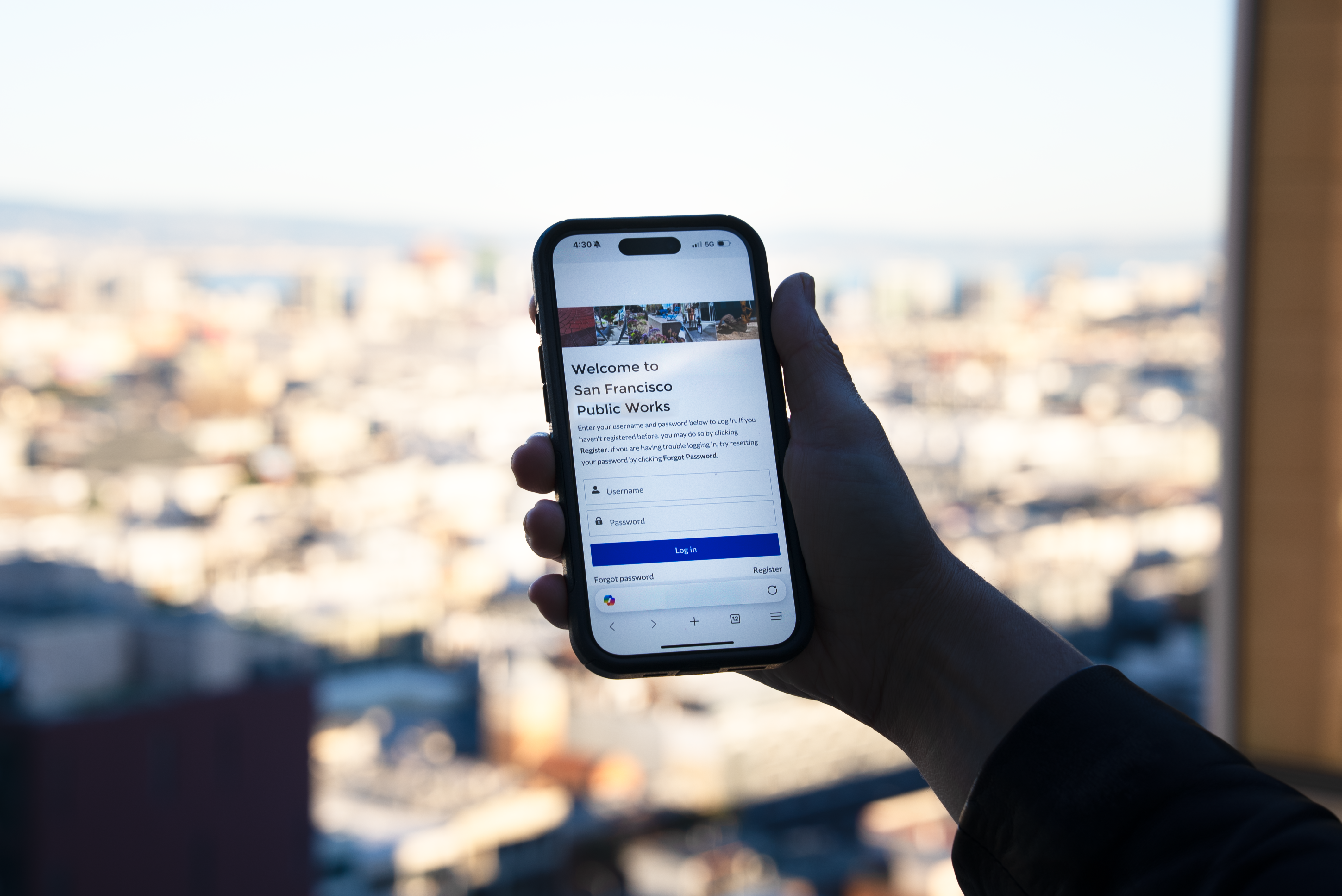
Welcome to the Public Works Permits Portal – your new digital gateway to faster, simpler permitting.
The portal provides a streamlined, fully digital experience — from applying for a permit to activating your tow signs. No more trips to the Permit Center unless you want help.
>>>> ACCESS THE PUBLIC WORKS PERMITS PORTAL <<<<
What permits are part of the new portal?
We're starting with four of the most-used permits – representing 62 percent of the annual permit volume for Public Works.
- Street Space permit allows you to occupy the street or sidewalk alongside your property to support construction activities, such as painting or a renovation project. Street space permits can be one to six months in duration.
- Temporary Occupancy permit allows you to occupy the street or sidewalk for shorter durations (typically less than seven days) to support activities such as tree trimming, staging a scissor lift or closing the street for a special event.
- Sidewalk Repair permit allows you to make repairs to the sidewalk alongside your property. Your repairs can be voluntary or in response to receiving a Notice to Repair (NTR) from the City.
- Conformity Inspection allows you to verify that the streets and sidewalk adjacent to your building construction project conform to City standards and Public Works code.
Registration
How do I get an account on the new portal?
- Visit the portal on your web browser – at your desk, on your tablet or on your phone.
- Register as a Resident/Homeowner, a Business or a Contractor. You’ll need to provide your email address and property address.
- To register a business account, you also need to provide your Business Account Number.
- To register a Contractor account, you also need to provide your Business Account Number and your state license number.
- The portal will send you an email with a link to complete your registration.
The information from your account is automatically tied to all your permit applications in the new portal. One registration and you’re done. No more filling out the same forms repeatedly.
Need help registering? Watch our short tutorial videos.
- Registration - Contractor User Tutorial
- Registration - Business User Tutorial
- Registration - Resident or Homeowner User Tutorial
How do I manage business accounts in the new portal?
The first person to register with a Business Account Number on the portal becomes the Administrator for that specific business, by default.
To invite other employees to the Portal:
- Log into the portal and click on your name in the upper right corner.
- Select My Account Information then click the Employee Details tab.
- Click the Invite button and follow the prompts to invite additional employees to have access to your account.
The portal will send an email to each of the invited employees with a link to complete their registration.
Once logged in, the employees have shared visibility to the business’s permits in the portal.
Can I get help registering on the new portal?
For help with registration, email us at PermitSF@sf.gov. You can also visit us at the Permit Center.
Getting a Permit
How do I apply for a permit in the new portal?
To submit a permit application in the portal:
- Log into the portal and click the New Permit tile.
- Select the permit type and follow the prompts.
- A graphic bar at the top of each page tracks your progress through the application.
- You can click Pause at any time to save a draft of your application.
- On the last page, click Finish to submit your application.
Before the City can begin reviewing your application, you need to pay an intake fee. This is a small deposit that applies toward your final permit fees.
To pay your intake fees in the portal:
- Log into the portal and open the permit application.
- Click the Pay for Permit button.
- Follow the prompts to pay online via credit card or electronic check.
As an alternative to paying your intake fees in the portal, you can come to the Permit Center. When you arrive, check into the Help Desk and provide your permit number.
Note: In special cases, intake fees are not applied:
- If you applied under First Year Free
- If you have a re-roofing permit and applied for a Street Space (20 linear feet or less)
How do I check permit status in the new portal?
Once you have submitted your application and paid your intake fees, the City can begin review. Applications are reviewed in the order they are received.
- If the plan reviewer requires corrections to your application, you’ll receive an email explaining the corrections.
- If the plan reviewer approves your application, you’ll receive an email requesting payment of your final permit fees.
At any point, you can view in real-time your permit status in the portal.
- Log into the portal and click the My Permits tile.
- Click the permit number to view additional details.
Can I message staff in the portal?
Yes! You can communicate with your plan reviewer directly in the portal – without sending separate emails or playing phone tag.
To message your plan reviewer in the portal:
- Log into the portal and open the permit application.
- Click the Message Staff tab.
- Post your message or question and click Share.
When your plan reviewer replies, you’ll receive a notification in the portal and via email.
Can I get help applying for a permit on the new portal?
Email us at PermitSF@sfgov.org. You can also visit us at the Permit Center.
Need help registering? Watch our short tutorial videos.
- Registration - Contractor User Tutorial
- Registration - Business User Tutorial
- Registration - Resident or Homeowner User Tutorial
- Selecting Multiple Street Segments Tutorial
Getting Tow-Away Signs
How do I get my tow-away signs?
With the portal, you can pay for printed tow-away signs at the same time you pay for your permit. Once your permit is issued, you can pick up your signs at the Permit Center.
If you want to print your own signs, you can get them in the portal:
- Log into the portal and open the permit application.
- Click the Files tab to access your tow-away sign and placard.
- Be sure to print the signs in color on 11” x 17” paper.
You’ll also get an email notification when the permit is issued with links to your tow-away sign and placard.
How do I get my tow rights?
Post your printed signs in front of the permitted address and take photos, following the directions in this guide.
To upload your photos to the portal:
- Log into the portal and open the permit application.
- Click the Submit Documents button to upload your photos.
Note: You can log into the portal to upload your photos directly from your phone or mobile device.
If the plan reviewer identifies an issue with your tow sign photos, you’ll receive an email explaining the corrections required.
Once your tow sign photos are approved, your tow rights go into effect 72 hours later.
Can I get help with my tow-away signs?
Email us at PermitSF@sfgov.org
Inspections
How do I schedule an inspection?
There are three ways to schedule an inspection. Schedule your inspection at least 72 hours in advance by:
- Using the portal (preferred)
- Log into the portal and open the permit application
- Click the Inspections tab and click the Request Inspection Date button to schedule your inspection.
- Email: PublicWorksInspections@sfdpw.org
- Phone: (628) 271-2000